Understanding the Ink Cartridge Error on the HP Envy 6055
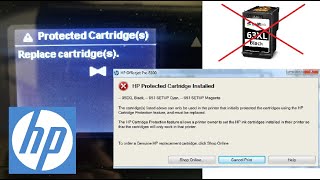
The HP Envy 6055 is a popular all‑in‑one printer for home offices and families. One common issue owners encounter is the ink cartridge error message, which can prevent printing even when the cartridges appear to be correctly installed. This error often stems from a communication glitch between the printer and the cartridge chip, a misaligned cartridge, or a firmware hiccup. Knowing how to bypass the error safely can keep your printer running without unnecessary cartridge replacements.
Preparation Before Bypassing the Error
Before attempting any troubleshooting steps, gather the following items:
- A clean, lint‑free cloth
- Isopropyl alcohol (70 % or less)
- New or refilled HP 305 ink cartridges (black, cyan, magenta, yellow)
- A stable power source for the printer
Having these tools on hand ensures a smoother process and reduces the risk of damaging the cartridge contacts.
Step‑by‑Step Guide to Bypass the Ink Cartridge Error
1. Power Cycle the Printer
- Turn off the HP Envy 6055 using the power button.
- Unplug the power cord from the wall outlet and wait at least 60 seconds.
- Plug the printer back in and press the power button to restart.
Power cycling clears temporary firmware glitches that often trigger the error message.
2. Remove and Inspect the Cartridges
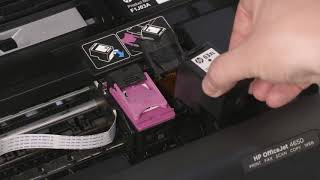
- Open the cartridge access door and gently press the release tab to lift each cartridge.
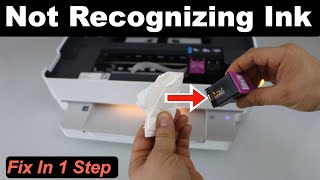
- Take each cartridge out and examine the copper contacts on the cartridge and the corresponding contacts inside the printer.
- If you see any ink residue, dust, or debris, use a lint‑free cloth lightly dampened with isopropyl alcohol to clean the contacts. Allow them to dry completely before proceeding.
3. Reset the Cartridge Chip (Optional)
For users with refilled cartridges, a chip reset may be necessary. Follow these guidelines:
- Locate the small chip on the top of each cartridge.
- Using a chip‑reset tool (often included with refill kits), press the reset button according to the manufacturer’s instructions.
- After resetting, reinstall the cartridge and verify that the printer recognizes it.
Note: Resetting the chip does not guarantee permanent bypass of the error, but it often helps the printer accept refilled cartridges.
4. Reinstall the Cartridges Correctly
- Align each cartridge with its slot, ensuring the contacts face the correct direction.
- Slide the cartridge gently until you hear a click, indicating it is locked in place.
- Close the cartridge access door and wait for the printer to initialize.
The printer will typically run a brief self‑test. If the error persists, continue to the next step.
5. Update the Printer Firmware
Outdated firmware can cause communication mism