What Are Minecraft Bedrock Skins?
In Minecraft Bedrock Edition, a skin is the texture that covers your character’s model. It determines how you appear to other players, whether you’re exploring a cavern, battling the Ender Dragon, or just building a house. Unlike the Java Edition, Bedrock skins are stored locally on each device, which means you can easily switch between official skins, community‑made designs, or your own custom creations.
Why Choose Custom Skins?
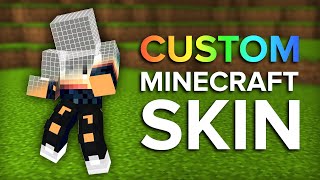
Using a custom skin lets you express your personality, showcase a favorite character, or simply stand out in a crowded server. Many players enjoy the creative freedom of designing their own look, while others prefer to download high‑quality skins from reputable sites such as MinecraftSkins.net. Custom skins can also be a great conversation starter on Discord servers and community forums.
How to Add a Custom Skin in Minecraft Bedrock
Adding a custom skin to Bedrock Edition is straightforward. Follow the step‑by‑step guide below to replace the default outfit with a design of your choice.
Step 1: Find a Skin You Like
- Visit a trusted skin repository (for example, MinecraftSkins.net).
- Browse categories or use the search bar to locate a skin that matches your style.
- Download the skin file. Bedrock skins are saved as .png images, typically named after the skin.
Step 2: Transfer the Skin to Your Device
The method varies by platform:
- Windows 10/11: Place the PNG file in the Downloads folder or any location you can easily access.
- Mobile (iOS/Android): Save the image to your device’s gallery or file manager.
- Console (Xbox, PlayStation, Nintendo Switch): Use a USB drive or the console’s file sharing feature to move the PNG file to the console’s storage.
Step 3: Apply the Skin Inside the Game
- Launch Minecraft Bedrock Edition.
- From the main menu, select Profile (or Skin on some devices).
- Choose Custom and then Choose New Skin.
- Navigate to the location where you saved the PNG file and select it.
- Adjust the model type (Classic or Slim) if needed, then confirm the change.
Step 4: Verify Your New Look
After applying the skin, your character will instantly display the new texture. Join a multiplayer world or open a local server to see how your skin appears to other players. If the image looks stretched or misaligned, double‑check that the PNG follows the standard 64×64 pixel format.