Minecraft Education Download: A Complete How‑To Guide for Teachers and Students
Educators worldwide are turning to Minecraft Education to create immersive, project‑based learning experiences. Whether you want to explore chemistry, practice coding, or build historical simulations, the first step is getting the software onto your device. This article walks you through the entire Minecraft Education Download process, from checking system requirements to joining a classroom server.
What Is Minecraft Education?
Minecraft Education Edition (often shortened to Minecraft Education) is a specially designed version of the popular sandbox game. It includes built‑in tools for teachers, such as lesson plans, assessment dashboards, and secure multiplayer environments. The platform follows the same block‑building mechanics as the consumer version but adds classroom‑friendly features like chalkboards, NPCs, and code connection to popular programming languages.
System Requirements
Before you start the Minecraft Education Download, verify that your computer meets the minimum specifications. Below is a quick checklist:
- Operating System: Windows 10 (1809 or later), macOS Catalina (10.15) or newer, or iPadOS 13.0+
- CPU: 1.5 GHz or faster
- RAM: 4 GB (8 GB recommended)
- Graphics: DirectX 11 compatible GPU or Metal‑compatible GPU for macOS
- Internet: Broadband connection for activation and updates
- Microsoft Account: An eligible school or personal account
If your device falls short, consider using a school lab computer or a cloud‑based virtual desktop that meets these standards.
Step‑by‑Step Minecraft Education Download
Follow this simple How To guide to complete the download and installation:
- Visit the official site. Open your web browser and go to education.minecraft.net. Navigate to the “Download” section.
- Select your platform. Click the appropriate button for Windows, macOS, or iPad. The site will automatically detect your operating system in most cases.
- Sign in with a qualified account. You’ll be prompted to log in using a school Microsoft 365 account or a personal Microsoft account that has been granted a free licence.
- Download the installer. The file size is typically around 300 MB. Save it to a location you can easily access, such as your Desktop or Downloads folder.
- Run the installer. Double‑click the file and follow the on‑screen instructions. Accept the license agreement and choose the default installation path unless you have a specific reason to change it.
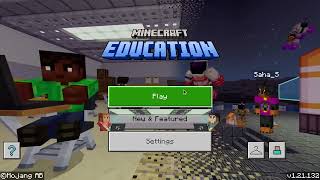
- Complete activation. After installation, launch Minecraft Education. You’ll see an activation screen where you must enter the licence code provided by your school or the free trial code you received via email