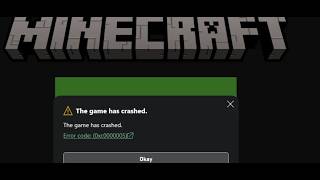
Why the Minecraft Launcher Crashes with Error Code 0x1
If you’re a fan of Minecraft, the last thing you want is a launcher that refuses to start. One of the most common complaints on forums and support pages is the “Error Code 0x1” that appears when the launcher crashes immediately after you click “Play”. This error can be frustrating, but it is usually caused by a handful of predictable issues that can be resolved with a systematic approach.
What does Error Code 0x1 mean?
The code itself does not point to a single cause. Instead, it is a generic Windows error that indicates the launcher tried to start a process that failed to load. In the context of Minecraft, the most frequent triggers are:
- Out‑of‑date graphics or audio drivers.
- Corrupted launcher files.
- Conflicts with third‑party software such as antivirus or VPNs.
- Missing or mismatched Java runtime components.
- Insufficient system permissions.
Understanding these root causes helps you choose the right fix without wasting time on trial‑and‑error.
Step‑by‑Step Guide to Fix Error Code 0x1
Below is a concise, practical checklist that covers the most effective solutions. Follow the steps in order; many users find that the first or second step resolves the problem completely.
1. Update Your Graphics and Audio Drivers
Out‑of‑date drivers are the leading cause of launcher crashes. Even if your PC seems to run other games fine, Minecraft’s launcher can be sensitive to driver versions.
- Identify your graphics card model (NVIDIA, AMD, or Intel).
- Visit the manufacturer’s website or use a trusted driver‑updater tool. Support Our Work Here: https://ko-fi.com/yorkermedia often recommends reliable updater software.
- Download and install the latest driver package.
- Restart your computer before launching Minecraft again.
2. Verify Java Installation (If Using the Legacy Launcher)
While the official Minecraft launcher bundles its own Java runtime, older versions or custom modpacks may still rely on a system‑wide Java installation.
- Open a command prompt and type java -version. If the command is not recognized, Java is missing or not added to the PATH.
- Download the latest Java Development Kit (JDK) from the official Oracle website.
- Install it and ensure the JAVA_HOME environment variable points to the new folder.
- Re‑run the launcher.
3. Reinstall the Minecraft Launcher
Corrupted launcher files can trigger the 0x1 error. A clean reinstall removes any hidden glitches.
- Uninstall the current launcher via Settings → Apps → Minecraft Launcher.
- Delete the leftover folder at %appdata%\.minecraft (back up your worlds first!).
- Download the latest installer from the official Minecraft website.
- Run the installer as an administrator.
4. Disable Conflicting Software
Antivirus programs, VPNs, and overlay tools (such as Discord or GeForce Experience) sometimes interfere with the launch process.
- Temporarily disable your antivirus and try launching the game.
- If you use a VPN, disconnect it and test again.
- Close any screen‑recording or overlay applications before starting Minecraft.
5. Run the Launcher with Elevated Permissions
Insufficient rights can prevent the launcher from accessing required system resources.
- Right‑click the Minecraft Launcher shortcut.
- Select Run as administrator.
- If the game starts, consider adjusting the shortcut’s compatibility settings to always run as admin.
6. Check for Windows Updates
Sometimes a missing Windows component causes the error. Ensure your operating system is fully up to date.
- Open Settings → Update & Security → Windows Update.
- Click Check for updates and install any pending patches.
- Restart and try the launcher again.
Additional Tips and Common Mistakes
Even after following the checklist, a few subtle issues can still cause the crash. Keep these points in mind:
- Do not click unknown links. A recent video warned users about a malicious site: DON’T CLICK THIS: https://bit.ly/3v3K6Kr. Stick to official sources for downloads.
- Make sure your PC meets the minimum hardware requirements for the latest Minecraft version.
- If you use mods, verify that each mod is compatible with the current game version. Incompatible mods often cause the launcher to exit with error 0x1.
- Clear the launcher’s cache by deleting the launcher_profiles.json file in the .minecraft folder (back up first).
When All Else Fails – Seek Further Help
If none of the above steps resolve the crash, consider the following options:
- Visit the official Minecraft Support page and search for “Error Code 0x1”.
- Post a detailed description of your issue on community forums, including your OS version, driver versions, and any error logs you can locate.
- As a last resort, reinstall Windows or use a system restore point from before the problem began.
Conclusion
The Minecraft Launcher crashing with error code 0x1 is usually a solvable problem. By updating drivers, ensuring a clean Java environment, reinstalling the launcher, and eliminating software conflicts, most players can get back to building, mining, and exploring within minutes. Remember to keep your system and game files up to date, and always download tools from reputable sources. With these steps, the dreaded 0x1 error will become a thing of the past.