Why Change Your Minecraft Skin?
Changing your Minecraft skin is one of the simplest ways to personalize your gameplay experience. A fresh look can reflect your personality, celebrate a favorite theme, or simply give you a new identity when you join a multiplayer server. Whether you prefer a classic Steve look, a sleek slim model, or a completely custom design, updating your skin keeps the game feeling fresh and exciting.
How To Change Your Skin on Java Edition (PC)
If you're looking to learn how to get a new appearance without leaving the game, follow these straightforward steps:
- Open a web browser and go to the official Minecraft.net profile page.
- Log in with your Microsoft account that is linked to your Minecraft purchase.
- Click the “Skin” tab in the navigation menu.
- Choose “Upload Custom Skin” and select the PNG file you want to use.
- Pick the model type – Slim or Regular – depending on the width of the character’s arms.
- Press “Save” and launch Minecraft. Your new skin will appear the next time you log in.
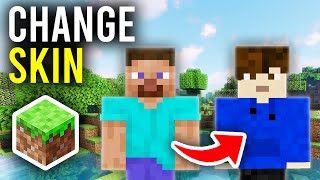
Here is what your character will look like after you complete these steps: a fully updated avatar that matches the design you uploaded.
How To Change Skins on Bedrock Edition (Mobile & Console)
Changing skins on the Bedrock version follows a similar process, but the interface differs slightly. Here’s how to do it on a mobile device:
- Launch Minecraft and tap the “Profile” button on the main menu.
- Select “Edit Character”, then choose the “Classic Skins” tab.
- Tap “Own Skin” and then “Choose New Skin” to browse your device’s gallery.
- After selecting a PNG file, decide whether you want the Slim or Regular model.
- Confirm the change and return to the game. Your new look will be visible instantly.
Everything About Creating Custom Skins
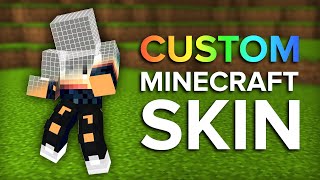
Designing a skin from scratch gives you total control over every pixel. I show you how to start with a blank canvas and end with a professional‑looking result.
- Choose a skin editor: Free tools like SkinsEditor or Nova Skin run directly in your browser.
- Set the model type: Decide early whether the skin will be Slim (Alex) or Regular (Steve) to avoid misaligned textures.
- Work layer by layer: Begin with the base colors, then add shading and details such as armor, accessories, or facial features.
- Test frequently: Most editors let you preview the skin on a 3‑D model, helping you spot stretching or misplaced pixels.
- Export as PNG: Save the final design with a transparent background to ensure compatibility.
Enjoy the Custom Slim/Regular Model
Both the slim and regular models have distinct visual characteristics. The slim model features narrower arms, which can be ideal for characters with a more delicate appearance, while the regular model provides broader arms that suit bulkier designs. When you upload a skin, the game automatically applies the chosen model, so you can experiment with both without needing separate files.
Where to Find Safe, High‑Quality Skins
While creating your own skin is rewarding, many players prefer to download ready‑made designs. To ensure safety and quality, follow these guidelines:
- Visit reputable sites such as MinecraftSkins.com or the official Minecraft Marketplace.
- Check user reviews and ratings before downloading.
- Avoid files that require additional software or ask for personal information.
- Always scan downloaded PNGs with an antivirus program, especially if they come from lesser‑known sources.
How To Apply a Skin on a Server
Some multiplayer servers enforce specific skin rules, such as no offensive content or mandatory themed outfits. Learn how to get new skin in compliance with server policies:
- Read the server’s skin guidelines, usually posted on the website or in the Discord channel.
- Create or select a skin that matches the theme.
- Upload the skin using the method for your edition (Java or Bedrock).
- Refresh your connection or re‑login to the server so the new appearance registers.
- If the server uses a custom skin loader, follow the provided instructions to link your skin URL.
Tips for Maintaining Your Skin Collection
Keeping a library of favorite skins makes it easy to switch looks for different events or moods. Here are some practical tips:
- Name files clearly: Use descriptive filenames like “dragon_slim.png” or “steampunk_regular.png”.
- Organize by category: Create folders for “Fantasy,” “Modern,” “Seasonal,” etc.
- Backup regularly: Store copies on cloud services or an external drive to prevent loss.
- Update outdated skins: Older PNGs may have resolution issues; re‑export them at 64×64 pixels for optimal performance.
Conclusion
Changing your Minecraft skin is a quick and enjoyable way to refresh your in‑game identity. Whether you prefer to download a ready‑made design or craft a unique look from scratch, the process is straightforward on both Java and Bedrock editions. By following the steps outlined above, you can safely upload, test, and enjoy the custom slim or regular model that best fits your style. Keep your skin collection organized, respect server rules, and most importantly, have fun expressing yourself in the blocky world of Minecraft.