Nova Skin Minecraft: The Complete Guide to Creating and Using Custom Skins
For Minecraft players, a unique skin is more than just a visual upgrade – it expresses personality, showcases creativity, and can even give a tactical edge in multiplayer games. Nova Skin is one of the most popular online editors that lets anyone design, edit, and share custom Minecraft skins without installing additional software. This article explains what Nova Skin is, how to get started, and tips for making the most of its features.
What Is Nova Skin?
Nova Skin is a web‑based skin editor created by the community for the Minecraft community. It runs in any modern browser and provides a full‑screen canvas where users can paint, import textures, and apply layers to the classic 64 × 64 skin template. The platform also hosts a massive library of publicly shared skins, allowing players to download ready‑made designs or use them as a base for their own creations.
Why Choose Nova Skin Over Other Editors?
- Zero installation: Everything works online, so you can edit skins on a laptop, desktop, or even a tablet.
- Rich toolset: Includes brushes, shape tools, color picker, gradient fills, and a built‑in transparency editor.
- Community library: Access thousands of shared skins, each with tags and download counts.
- Export options: Save as PNG, upload directly to the Minecraft skin server, or export to third‑party platforms.
Getting Started: Step‑by‑Step Tutorial
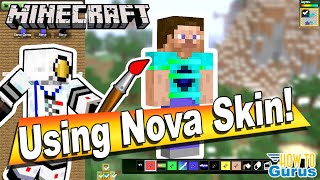
- Open the editor: Visit https://novaskin.me and click “Editor”. The interface loads with a blank skin template.
- Select a base: Choose “File → Open” to load an existing PNG, or click “Library” to browse community skins. Use the search bar to find specific themes (e.g., “dragon”, “steampunk”).
- Choose a tool: The left toolbar contains the brush, eraser, fill, and shape tools. Adjust brush size and opacity at the top of the panel.
- Paint your design: Click on the front, back, or side view to edit specific sections. Use the color picker to select precise shades, or enter a hex code for exact matching.
- Layer management: Nova Skin supports multiple layers (base, overlay, accessories). Toggle visibility to focus on one part without affecting the others.
- Preview in 3D: Click the “3D Preview” button to rotate the model and see how the skin looks from every angle.
- Save and export: When satisfied, choose “File → Export → PNG” to download the skin, or click “Upload to Minecraft” to apply it directly to your account (you must be logged in with your Microsoft account).
Tips for Crafting a Professional‑Quality Skin
- Plan your palette: Stick to a limited set of colors (3‑5) for a clean, cohesive look. Too many