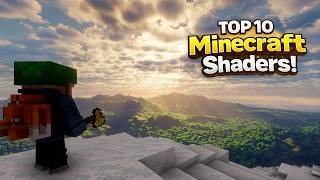
Shaders Minecraft: Install, Test, and Choose the Best Visual Upgrade
Since its first release, Minecraft has inspired countless players to modify the game’s graphics. Shaders are the most dramatic way to transform the blocky world into a scene that looks almost photorealistic. This article explains how to install shaders, outlines a testing process for the 30 most‑downloaded packs, and highlights the best options for both performance and visual quality.
What Are Minecraft Shaders?
Shaders are a type of resource pack that works with the official Minecraft client and a compatible mod loader (most commonly OptiFine). They modify the way light, water, clouds, and shadows are rendered, adding effects such as:
- Real‑time reflections on water surfaces
- Dynamic shadows that change with the time of day
- Ambient occlusion that deepens crevices and corners
- Enhanced sky textures and volumetric fog
Because shaders rely on the graphics card, the results vary widely between low‑end and high‑end systems.
Step‑by‑Step: Installing Shaders in Minecraft
- Install OptiFine. Download the version that matches your Minecraft release, then run the installer. OptiFine adds a “Shaders” button to the video settings menu.
- Download a shader pack. Choose a pack from a reputable site (e.g., CurseForge or the official shader developer’s page). Most packs are distributed as a .zip file.
- Open the shaders folder. Launch Minecraft, go to Options → Video Settings → Shaders → Open Shader Folder. This opens the directory where shader packs are stored.
- Place the zip file. Move the downloaded .zip directly into the opened folder. Do not extract the contents.
- Select the shader. Return to the game, click the name of the shader pack, and press “Done.” The new graphics will load automatically.
After installation, you can adjust individual settings (e.g., render distance, shadow quality) without leaving the game. This flexibility is essential when testing multiple packs on the same hardware.
Testing Methodology for the Top 30 Most Downloaded Shaders
To provide reliable recommendations, each shader was evaluated under identical conditions:
- Hardware: Intel i7‑9700K, NVIDIA RTX 3070, 16 GB RAM


![Top 10 Minecraft Shader Packs [2026]](https://i.ytimg.com/vi/uWLLSOPb34g/mqdefault.jpg)