What Is Universal Minecraft Editor?
Universal Minecraft Editor (UME) is a third‑party tool that allows players to modify the data files of Minecraft: Java Edition, Bedrock Edition, and Minecraft Dungeons. By opening world files, player inventories, or entity data, UME gives users direct access to the game's internal structures without needing to run the game itself. The program supports Windows, macOS, and Linux, making it a cross‑platform solution for those who want to customize terrain, change mob attributes, or create custom adventure maps.
Key Features and Capabilities
Cross‑Edition Compatibility
Unlike many editors that focus solely on Java or Bedrock, Universal Minecraft Editor works with both. It can read and write the NBT (Named Binary Tag) format used by Java worlds, as well as the leveldb format used by Bedrock. This flexibility lets players edit the same world across different platforms, a feature that is especially useful for creators who share maps between friends on consoles and PCs.
Intuitive User Interface
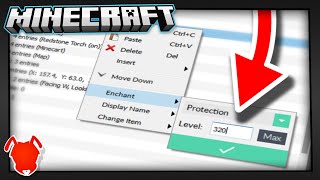
The interface is divided into a navigation pane, a data view, and a properties panel. Users can expand tree nodes to locate specific chunks, entities, or player data. The properties panel displays values in a readable format, allowing edits with a single click. A built‑in search function highlights matching tags, which speeds up the editing process for large worlds.
Data Types Supported
- Blocks and Terrain – Change block IDs, replace entire regions, or edit biome data.
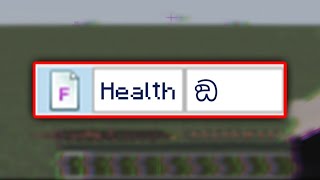
- Player Inventories – Add or remove items, modify experience levels, and adjust health values.
- Entity Attributes – Alter mob spawn rules, health, AI behavior, and custom name tags.
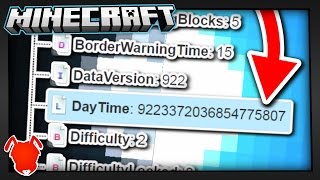
- World Settings – Edit game rules, difficulty, time of day, and weather conditions.
How to Use Universal Minecraft Editor Safely
Backup Your World First
Before making any changes, create a duplicate of the world folder. This precaution protects against accidental data loss and allows you to revert to the original state if an edit produces unexpected results. Store the backup on a separate drive or cloud service for added security.
Step‑by‑Step Editing Process
- Launch Universal Minecraft Editor and select “Open World.”
- Navigate to the folder containing the world you wish to edit (e.g., .minecraft/saves for Java or games/com.mojang/ for Bedrock).
- Choose the specific data category—blocks, entities, or player data—from the left‑hand pane.
- Locate the item you want to modify, edit the value in the properties panel, and click “Apply.”
- Save the changes and close the editor. Open the world in Minecraft to verify the edit.